 ExtLab
 Hide AI guide
ExtLab Hide AI hides AI Overviews on Google Search. This guide covers every setting. Sections marked Pro need a license or the 7-day trial. For other ways to do this, see how to turn off AI Overviews in Google.
Install
ExtLab Hide AI is coming soon to the Chrome Web Store. It will need no account.
Pin the icon: click the puzzle piece in the Chrome toolbar, then the pin next to ExtLab Hide AI. A welcome page opens after the install.
Your first search
Hiding is on from the start. Search on Google as usual. When the extension finds an AI Overview, it hides the block and shows a small note in the corner of the window: AI Overview hidden · Show.
Not every search has an overview. Google decides that, so many pages show no note at all.
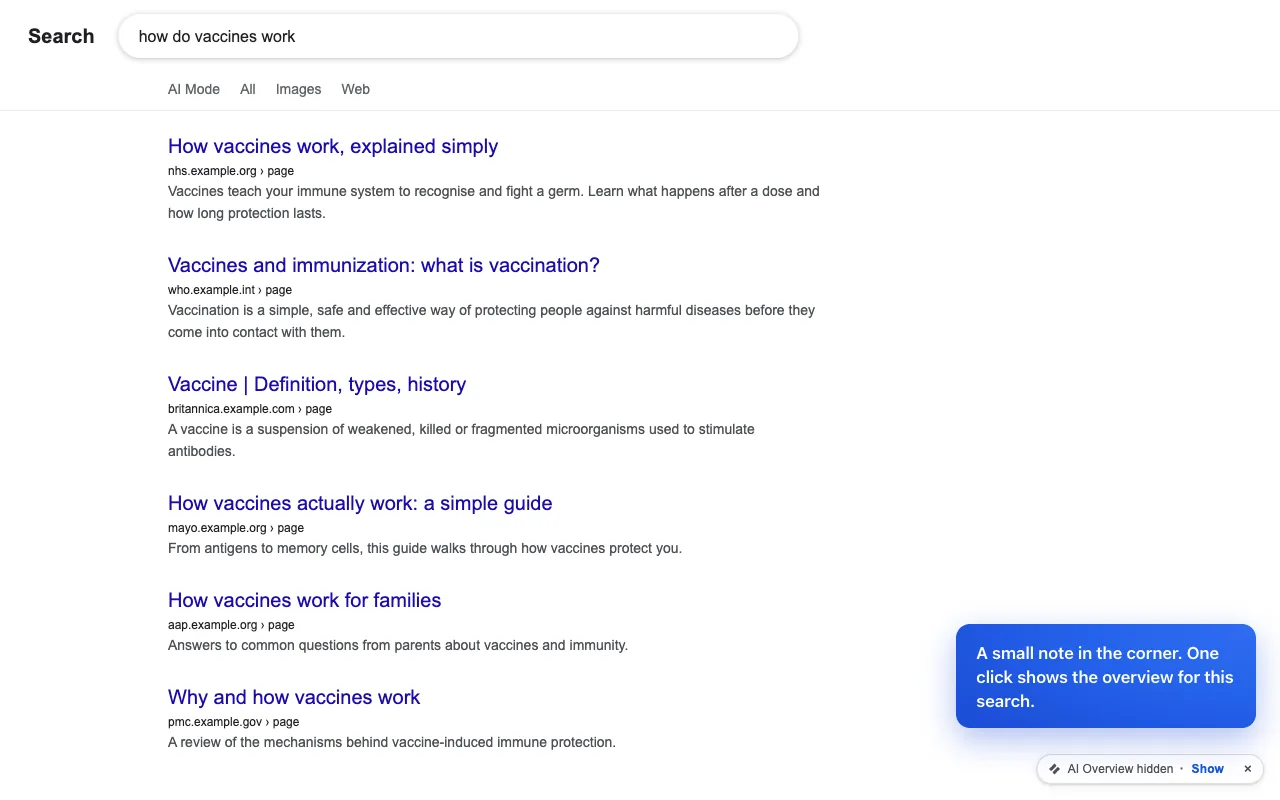
See one overview
Click Show on the note, and the overview comes back for this search. Click Hide to hide it again. A new search or a reload hides it again by itself.
To remove the note, open the settings and turn off Note on the results page. Hiding goes on without it.
Pause everything
Click the ExtLab Hide AI icon. The large switch turns all hiding off and on, with no reload. While it is off, the popup says Paused, and no Pro option applies either.
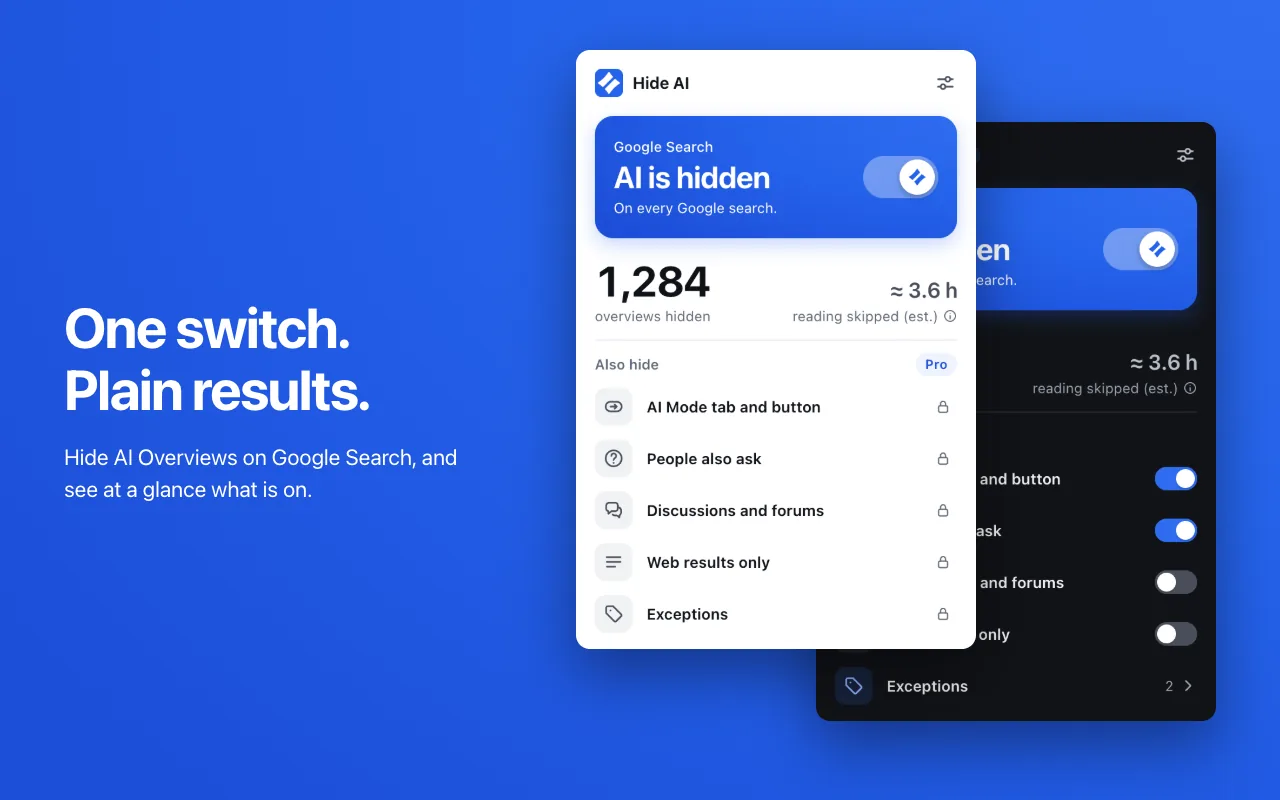
Your count
The popup counts the overviews it hid, one per search. The figure stays in your browser. The reading time next to it is a rough estimate at 10 seconds per overview. It is a guess, not a measurement.
Hide more (Pro)
Open the settings, then What to hide. Each block has its own switch.
- Hide the AI Mode tab and button removes the tab and the button next to the search box.
- Hide People also ask removes the block of related questions.
- Hide Discussions and forums removes the block of forum threads.
Web results only (Pro)
Web results only mode opens your searches in Google's Web view, which shows links only. It adds udm=14 to the address as a search opens. The page starts to load first, so you can see a short reload.
It leaves a search alone if you are already on another tab, such as Images, and it is built to keep the All tab usable. Google does not document this parameter, so it can change.
Exceptions (Pro)
Some searches are better with AI. Under Exceptions where AI stays, add a word or phrase, such as recipe. Searches with that text keep their AI Overview, and Web results only skips them. Matches are whole words, in any case.
How detection works
Google does not offer a way to turn AI Overviews off, so the extension has to find them on the page. It looks at the page structure, and at the label of a block in more than 30 languages. A block needs enough signals before it is hidden.
A guard then checks the block. If it holds an organic result, or a large part of the results list, it stays on the page. A result that merely has "AI Overview" in its title is not treated as an AI block.
Google can change its page at any time, and a change can stop detection. The rules can then be updated within about a day, with no extension update. They are data, never code. The settings show the current revision under Detection rules.
Activate Pro
- Buy Pro on Gumroad, or start the 7-day trial from the popup.
- Open the settings, then Pro and license.
- Paste the key from your Gumroad receipt under License key and click Activate.
One key covers 3 browsers, and Deactivate frees a place. When Pro ends, your settings stay stored and stop applying. A renewal brings them back. AI Overviews stay hidden on the free version.
Privacy
The extension reads the results page on your device. Your searches, URLs, page text and exceptions never leave your browser. It sends license checks, a daily fetch of the detection rules, and anonymous usage statistics. Turn the statistics off under Privacy in the settings. The privacy policy has the full list.
Troubleshooting
- An AI Overview still shows.
- Check that the popup does not say Paused, and that the search has no exception. If it still shows, Google may have changed its page. Write to us, and tell us your country and language, not your search.
- A real result went missing.
- Pause with the switch and search again. If that brings it back, please tell us.
- There is no note on the page.
- Either the page has no overview, or Note on the results page is off.
- It does nothing on Bing or DuckDuckGo.
- It works on Google Search only.
- It does not work on my phone.
- Chrome on a phone does not run extensions. Use Google's Web filter there.
Still stuck? Write to support@extlab.app.