 ExtLab
 Rotate guide
ExtLab Rotate turns a Chrome window into a self-running display. This guide covers everything from the first rotation to deploying a fleet of screens. Sections marked Pro need a license or the 7-day trial.
Install
ExtLab Rotate is coming soon to the Chrome Web Store. It will need no account.
Pin the icon: click the puzzle piece in the Chrome toolbar, then the pin next to ExtLab Rotate.
Your first rotation
- Open your dashboards as tabs in one window.
- Click the ExtLab Rotate icon.
- Leave Open tabs in this window selected, and click Start.
The popup shows the time to the next switch. Only that window rotates, and the rotation stops if you close it. The free version rotates the first 3 tabs of the window.
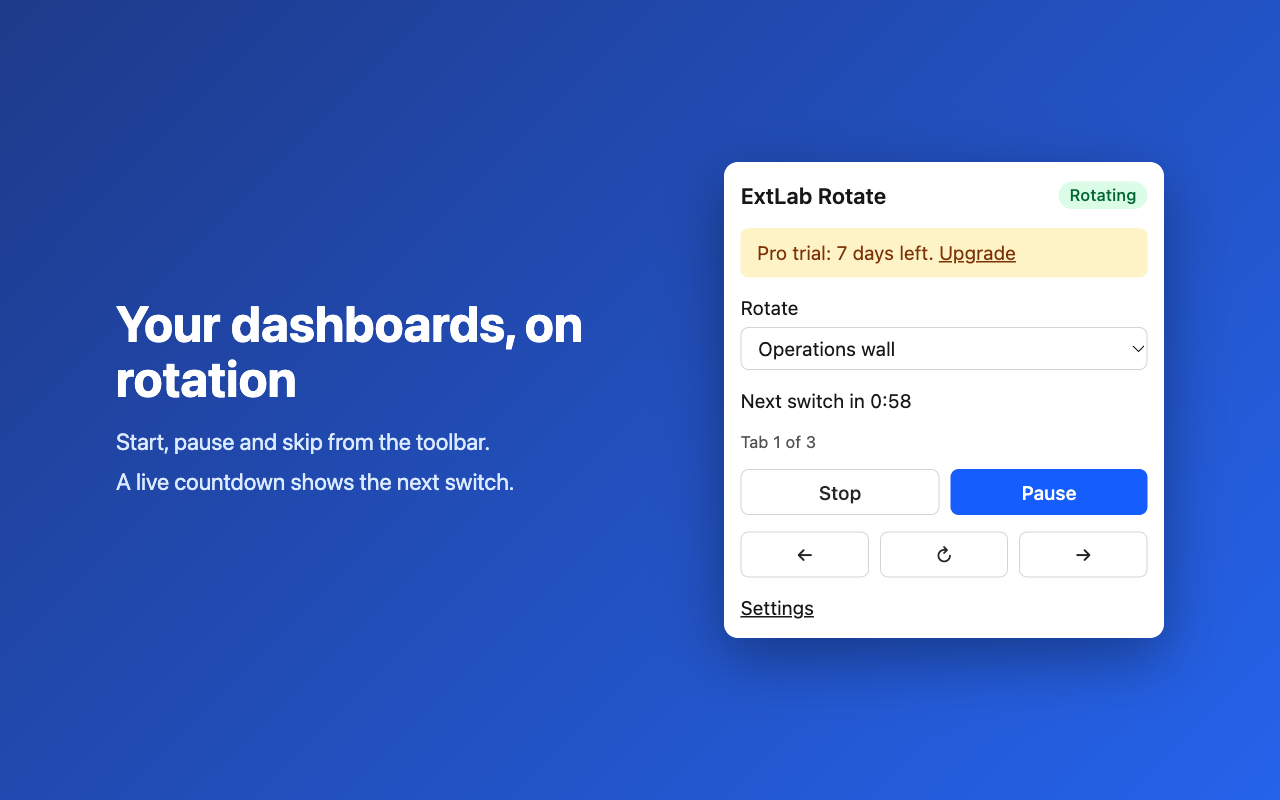
Set the interval
Open Settings from the popup, and set Seconds on each tab. The minimum is 5 seconds. Intervals under 30 seconds need Chrome 153 or newer. Older versions run them every 30 seconds.
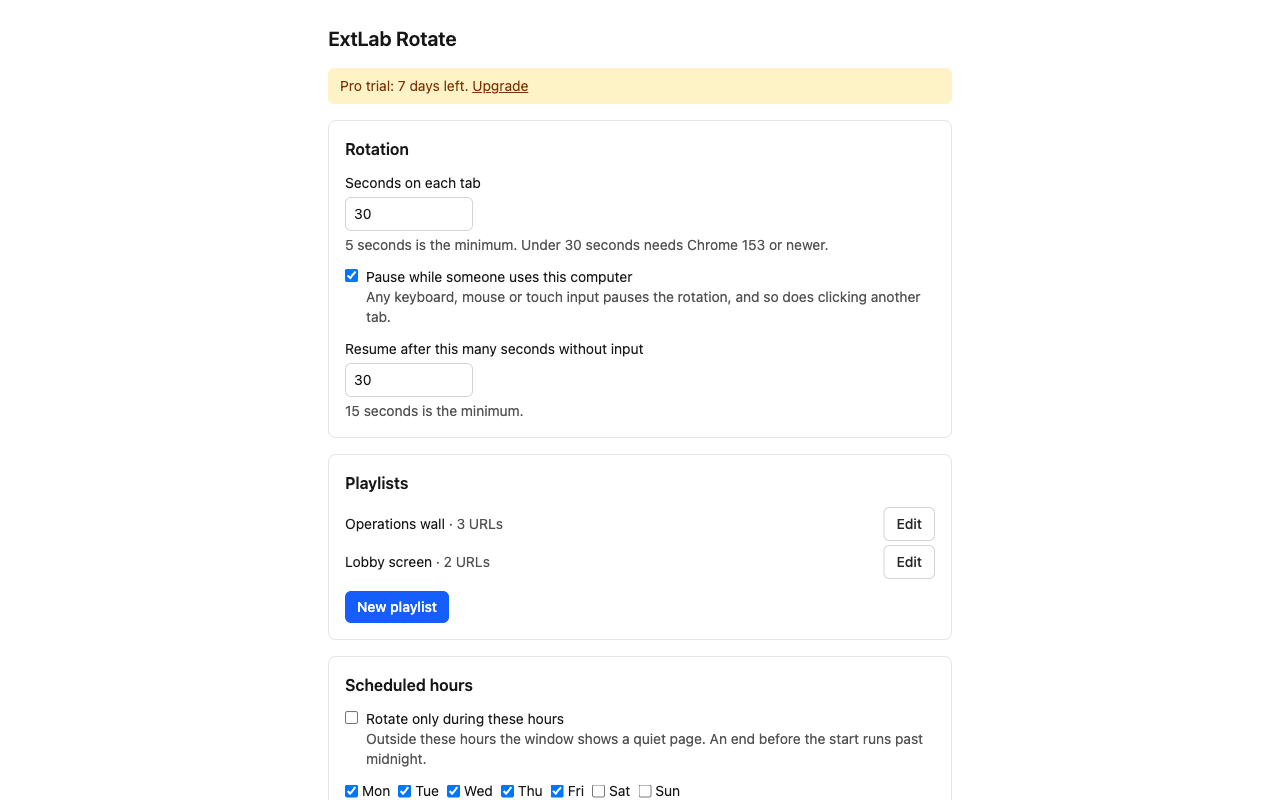
Pause on interaction
The rotation pauses when someone uses the keyboard, mouse or touch screen, or clicks another tab in the window. It resumes after the time you set, 30 seconds by default and 15 at the least.
This watches input on the whole computer, not only in Chrome. If the computer that drives the screen is also someone's workstation, turn it off in Settings.
Keep the screen awake
The display stays on while the rotation runs or is paused. This is on by default. Press Stop, or reach quiet hours, and the screen can sleep again. To turn it off, clear Keep the screen awake during a rotation in Settings.
Playlists and per-tab timing (Pro)
A playlist is a saved list of URLs, each with its own timing.
- In Settings, click New playlist.
- Add URLs, or click Add open tabs.
- Set Seconds for a tab, or leave it empty to use the global interval.
- Click Save.
- In the popup, pick the playlist and click Start.
Start uses open tabs that match, and opens the rest in the same window. A playlist tab that someone closes opens again. In the popup, Save open tabs as a playlist does this in one click.
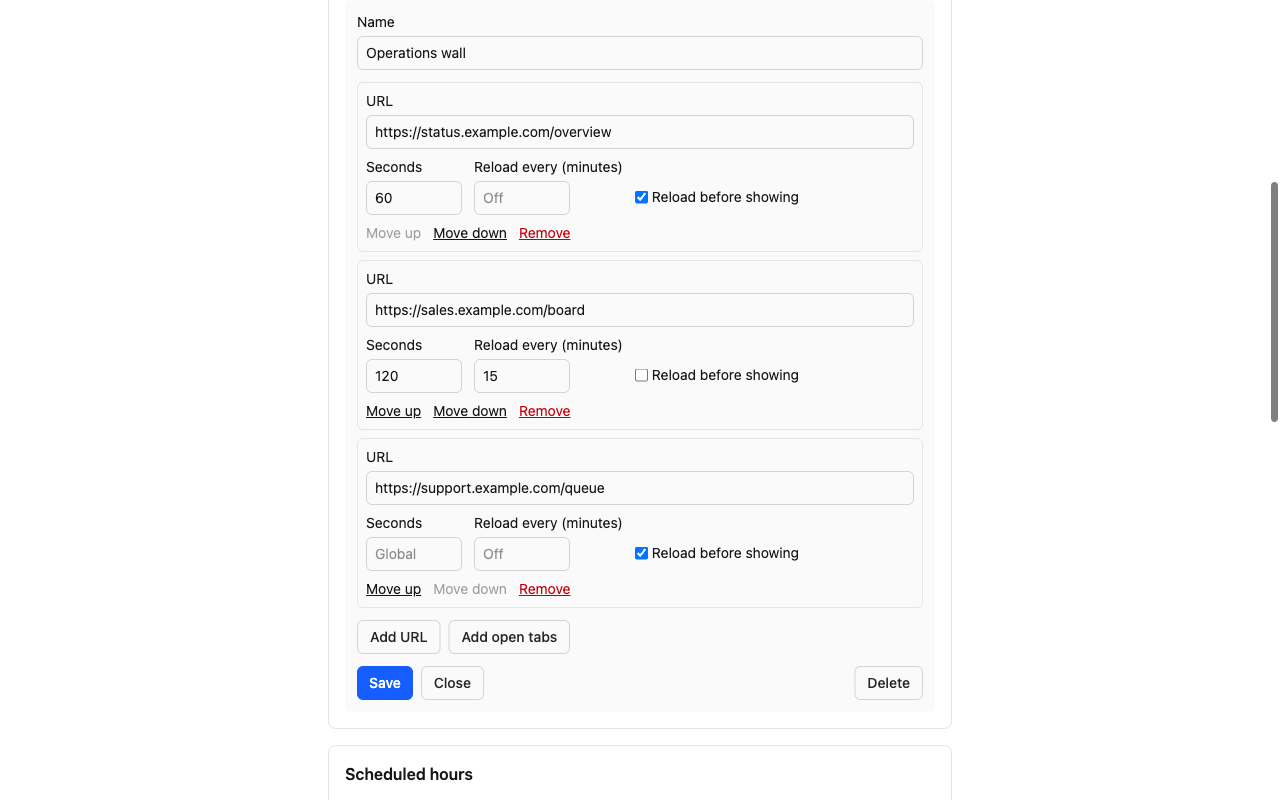
Auto-reload (Pro)
Each playlist item has two settings:
- Reload before showing reloads the tab while it is hidden, one slot before it comes up. It has a full interval to load, so it appears finished.
- Reload every N minutes runs on its own timer, even on the visible tab. It skips the tab someone is using during a pause, and stops during quiet hours.
Auto-scroll (Pro)
A dashboard taller than the screen can scroll from top to bottom during its time on screen. Turn on Auto-scroll for a playlist item. Each time the tab comes up, it starts again at the top.
ExtLab Rotate has no access to your sites after install. When you turn on auto-scroll, Chrome asks you to allow that one site. If you refuse, auto-scroll stays off. It moves the page and does not read it.
The scroll stops when someone uses the keyboard, mouse or touch screen on the page. It also works on pages that scroll inside a large panel. A playlist from an import or a policy cannot ask for access by itself, so Settings lists those sites with an Allow access button. Click it once on each browser.
Scheduled hours (Pro)
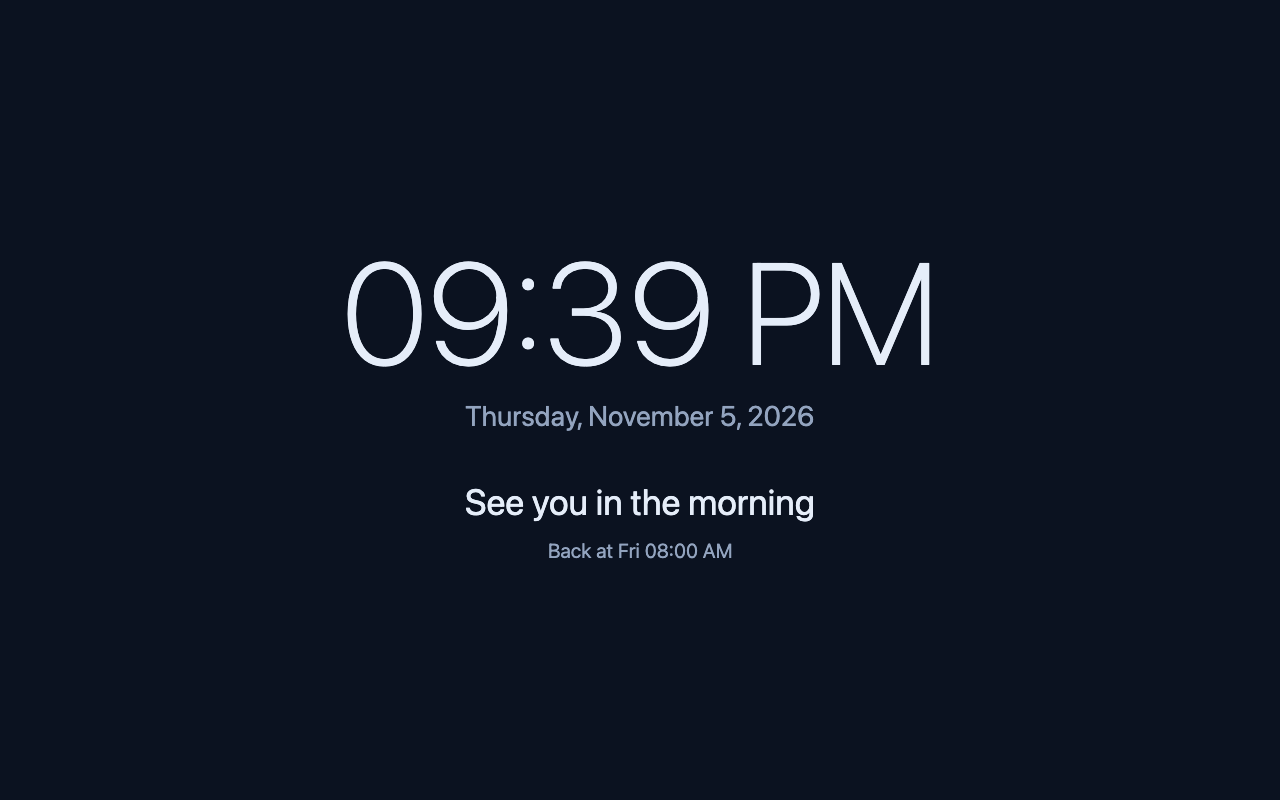
In Settings, turn on Rotate only during these hours, then choose the days and times. Outside those hours the window shows a quiet page with a clock and your message, and rotation stops. It comes back on its own.
An end time before the start time runs past midnight. Equal times mean all day. Times use the computer's clock.
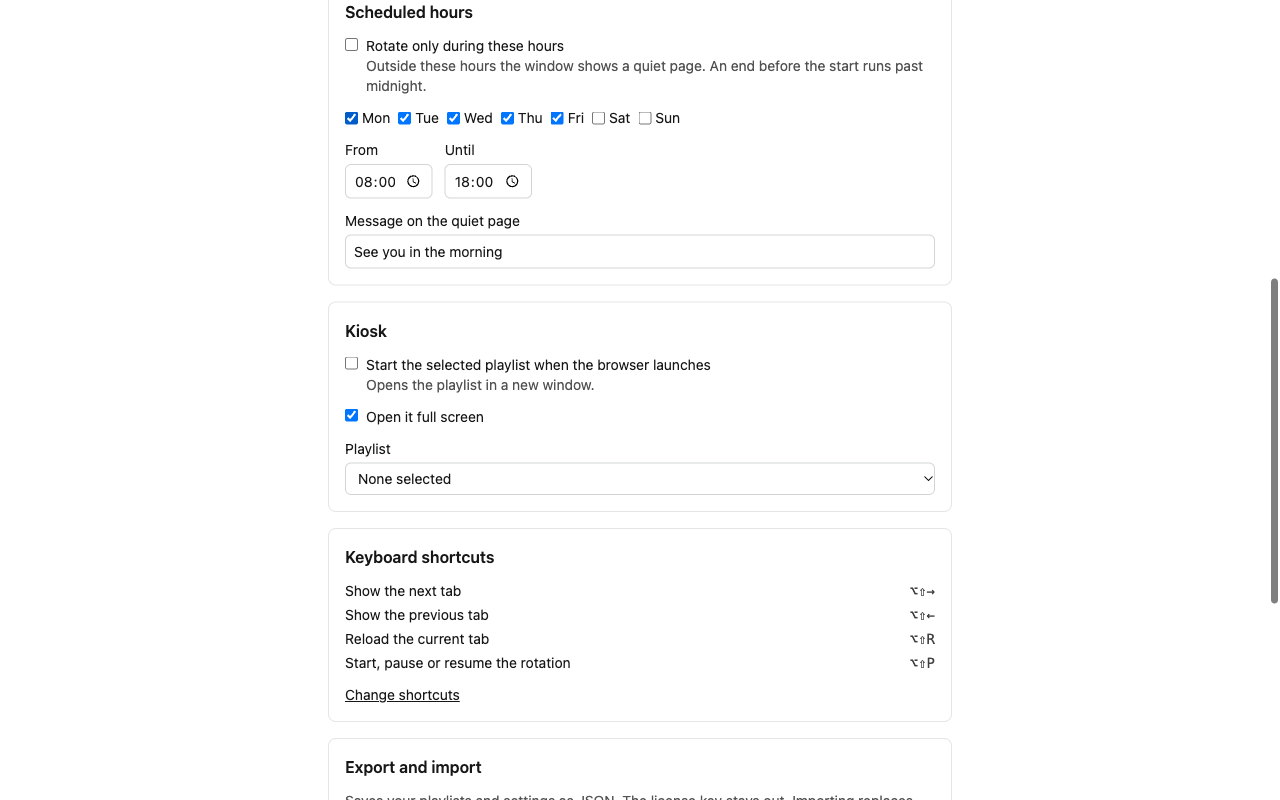
Kiosk auto-start (Pro)
- In Settings, under Kiosk, pick a playlist.
- Turn on Start the selected playlist when the browser launches.
- Keep Open it full screen on.
- Set your operating system to open Chrome at login.
Chrome still opens its usual startup window behind the full-screen one. To lock a screen down fully, also start Chrome with --kiosk or use a Chrome Enterprise kiosk profile. Our Chrome kiosk mode guide has the steps.
Keyboard shortcuts
| Shortcut | Action |
|---|---|
Alt+Shift+P | Start, pause or resume |
Alt+Shift+Right | Next tab |
Alt+Shift+Left | Previous tab |
Alt+Shift+R | Reload the current tab |
On a Mac, Alt is Option. Change them at chrome://extensions/shortcuts.
Export and import
In Settings, Export saves your playlists and settings as a JSON file. The license key stays out of the file. Import replaces what is in the browser. A file with errors changes nothing, and the page lists what is wrong.
Activate Pro
- Buy a plan. Gumroad emails your license key.
- In Settings, paste the key under License and click Activate.
Your tier sets how many browsers one key covers: Solo 3, Team 15, Site license unlimited. Deactivate frees a seat. A browser that goes silent for 30 days frees its seat too. A license keeps working for 14 days without a connection.
Deploy to many screens (Pro)
IT teams can configure every browser through Chrome Enterprise policy. Policy values override the browser's stored values, and their fields lock in Settings. Include licenseKey, because the policy needs an active license. Each browser takes one seat.
{
  "licenseKey": "XXXXXXXX-XXXXXXXX-XXXXXXXX-XXXXXXXX",
  "intervalSeconds": 60,
  "pauseOnInteraction": false,
  "keepAwake": true,
  "playlists": [
    {
      "name": "Lobby",
      "items": [
        { "url": "https://status.example.com/", "intervalSeconds": 120, "reloadBeforeShow": true },
        { "url": "https://sales.example.com/board", "reloadEveryMinutes": 15, "autoScroll": true }
      ]
    }
  ],
  "activePlaylist": "Lobby",
  "schedule": {
    "enabled": true,
    "days": [1, 2, 3, 4, 5],
    "start": "08:00",
    "end": "18:00",
    "quietMessage": "See you in the morning"
  },
  "kiosk": { "autoStart": true, "fullscreen": true },
  "telemetryEnabled": false
}
Google Admin console
- Go to Devices, Chrome, Apps & extensions.
- Add the extension by id and set it to Force install.
- Paste the JSON into Policy for extensions.
Windows
- Force-install the extension with the
ExtensionInstallForcelistpolicy. - Create the key
HKLM\Software\Policies\Google\Chrome\3rdparty\extensions\<extension id>\policy. - Add one value per field. Use a
REG_SZwith JSON for playlists, schedule and kiosk.
macOS
Deploy a configuration profile for com.google.Chrome through your MDM, with the policy under 3rdparty, extensions, then the extension id.
Linux
Put the policy in /etc/opt/chrome/policies/managed/extlab-rotate.json, under 3rdparty, extensions, then the extension id.
Check the result at chrome://policy.
Troubleshooting
- It says Paused and does not switch.
- Someone is using the computer, or input was detected. It resumes after the time you set. Turn off pause on interaction if the computer is in use all day.
- A 10 second interval switches every 30 seconds.
- Update Chrome. Intervals under 30 seconds need Chrome 153 or newer.
- It rotates only 3 of my tabs.
- That is the free limit. Pro rotates all of them.
- It stopped after Chrome restarted.
- A browser restart stops the rotation. Use kiosk auto-start to start it again by itself.
- Auto-scroll does nothing on a page.
- Check Allow access under Playlists in Settings. A page that redirects to another site, or scrolls inside a frame, does not scroll. The tab still rotates.
- A policy has no effect.
- Check
chrome://policy, and check that the license key is valid and has a free seat.
Still stuck? Write to support@extlab.app.