 ExtLab
 Refresh guide
ExtLab Refresh reloads tabs on a timer. This guide covers every setting. Sections marked Pro need a license or the 7-day trial. For ways to do this without an extension, see how to auto refresh a page in Chrome.
Install
ExtLab Refresh is coming soon to the Chrome Web Store. It will need no account.
Pin the icon: click the puzzle piece in the Chrome toolbar, then the pin next to ExtLab Refresh. A default install has no access to any website.
Your first refresh
- Open the page you want to keep current.
- Click the ExtLab Refresh icon.
- Under Refresh every, pick an interval.
- Click Start refreshing.
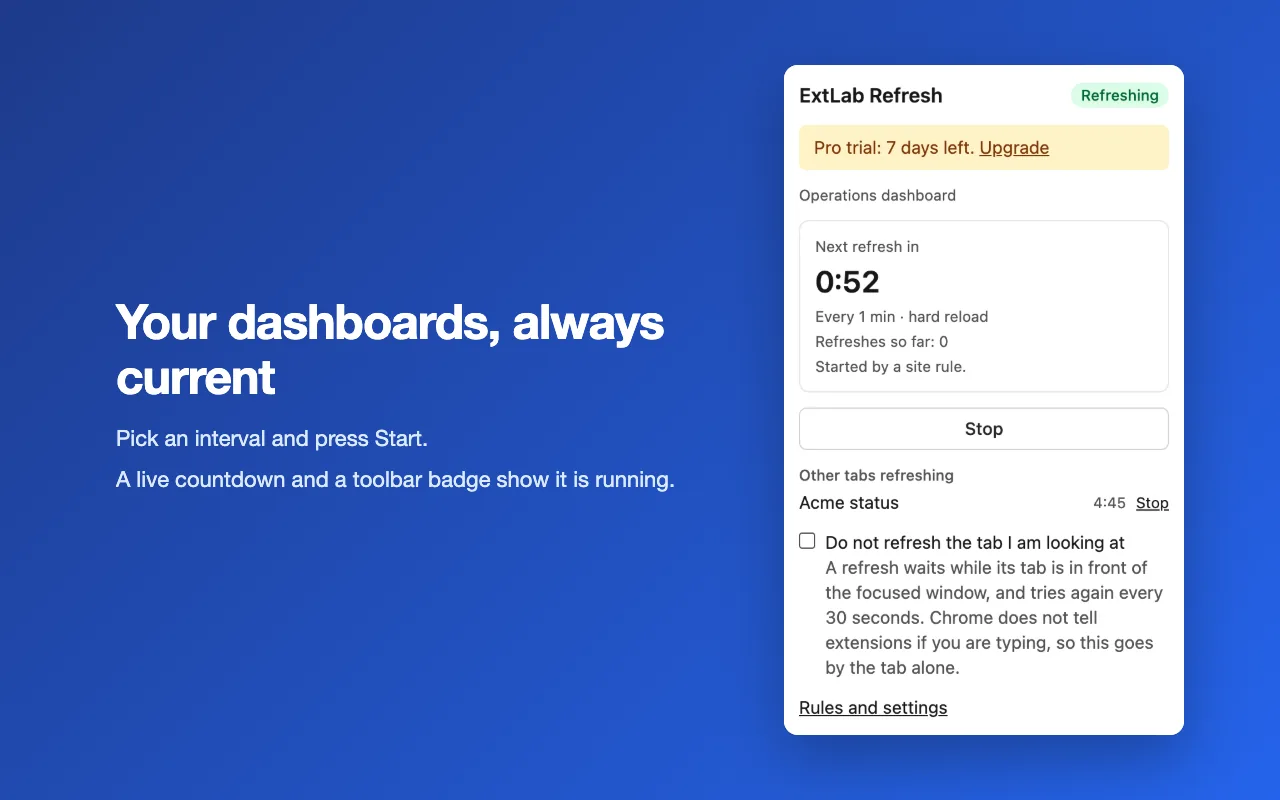
The popup shows Next refresh in with a countdown, and how many refreshes ran so far. The toolbar icon gets a badge on that tab. Click Stop to end it. The free version refreshes one tab at a time.
Set the interval
Presets run from 10 seconds to 1 hour. For your own value, use Custom interval, from 5 seconds to 24 hours.
Intervals under 30 seconds need Chrome 153 or newer. Older versions refresh every 30 seconds at the fastest, and the countdown shows that. After a laptop sleeps, a tab reloads once, not once for each missed interval.
Leave the tab in front alone
A reload can discard text you typed and did not save. Turn on Do not refresh the tab I am looking at for pages where you type. A refresh then waits while its tab is in front of the focused window, and it tries again every 30 seconds.
It goes by the tab alone. Chrome does not tell an extension whether you are typing, and finding out would need access to the page. A tab in a window without focus still refreshes, such as a wall screen next to your work.
Many tabs (Pro)
Start a timer on as many tabs as you like, each with its own interval. Other tabs refreshingin the popup lists them, with a Stop link for each.
Site rules (Pro)
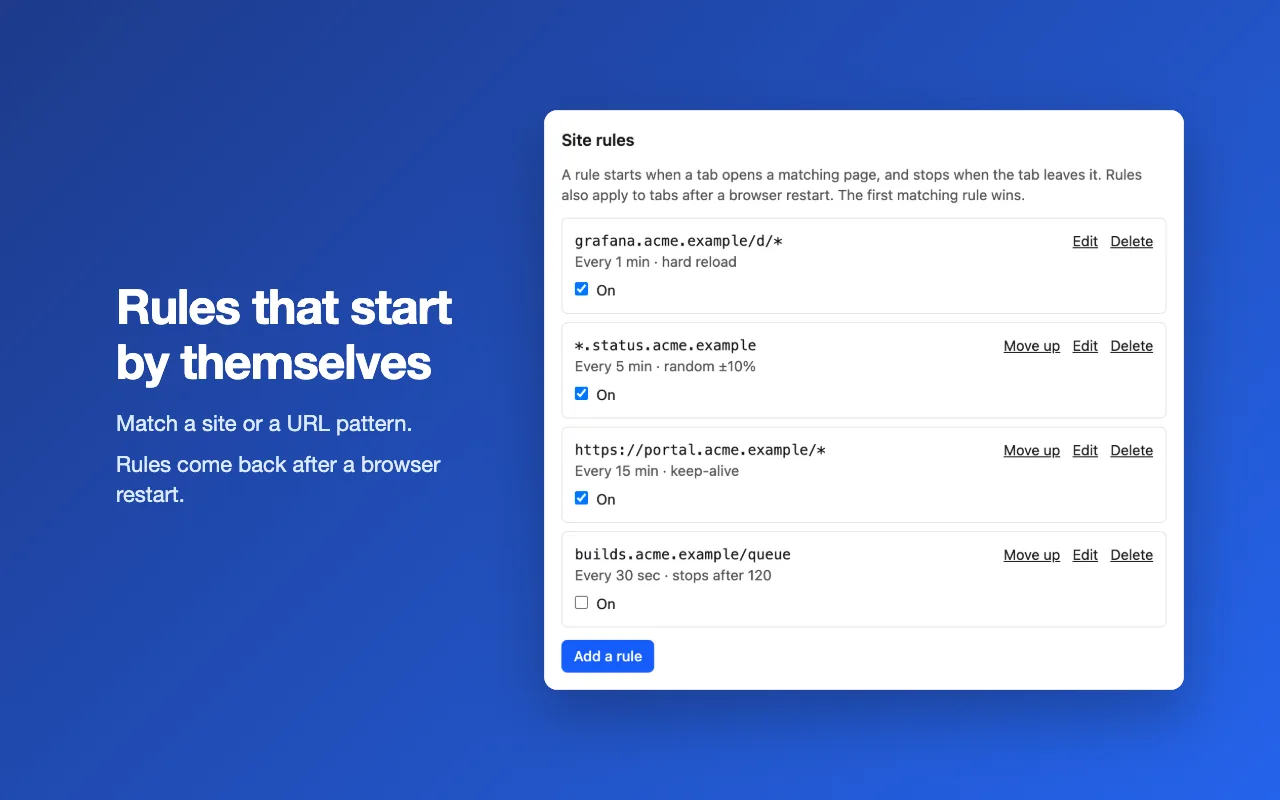
A rule starts refreshing by itself when a tab opens a matching page, and stops when the tab leaves it. Rules come back after a browser restart. A timer you started by hand does not.
- In the popup, click Rules and settings.
- Under Site rules, click Add a rule.
- Enter a URL pattern, set the interval, and click Save rule.
| Pattern | Matches |
|---|---|
example.com | The whole site, on http and https |
*.example.com | The site and every subdomain |
https://example.com/a/* | Only https, only under /a/ |
example.com/board?tab=* | That path, with any tab value |
localhost:3000 | That port |
The first enabled match in the list wins, and Move up changes the order. A timer started by hand stays ahead of a rule. After you press Stop, the rule stays off in that tab until the tab leaves the pattern.
More options (Pro)
These sit under More options in the popup, and in each rule.
- Hard reload bypasses the browser cache.
- Random timing (%) moves each interval up or down by at most this much, up to 50, so requests do not land on the dot.
- Stop after this many refreshes ends the timer by itself. A refresh that waits does not count.
Session keep-alive (Pro)
Session keep-alive is a slow mode for sites that sign you out when idle: a plain reload every 5 minutes or more. It always waits while the tab is in front.
It helps only where a page load counts as activity. A site with a fixed session limit still ends the session.
Page alerts (Pro)
An alert tells you when a text appears on a page, or disappears from it.
- Under More options, enter your text in Alert on this text.
- Under Notify when the text, choose appears on the page or disappears from the page.
- Click Allow for that site. Chrome asks you first, and other sites stay closed.
The check runs after each page load, in the top frame, and ignores case. It works on http and https pages. Text that is already there at the first check stays quiet. An alert in a rule must name one site. The extension keeps only a yes or a no, and no page text leaves the page. Remove a site under Site access in the settings.
Export and import
Under Backup in the settings, Export saves your rules as a JSON file. Import replaces your rules. A bad file changes nothing. Rules run with Pro.
Activate Pro
- Buy Pro on Gumroad, or start the 7-day trial from the extension. Gumroad emails your license key.
- In the settings, paste the key under License and click Activate.
One key covers 3 browsers. When Pro ends, rules and alerts stop. The oldest timer you started by hand keeps running without Pro options, so a dashboard does not freeze. Rules stay stored and return with Pro.
Troubleshooting
- A 10 second interval refreshes every 30 seconds.
- Update Chrome. Intervals under 30 seconds need Chrome 153 or newer.
- The popup says the tab is in front, so the refresh waits.
- That is Do not refresh the tab I am looking at, or keep-alive. Switch away, or turn the option off.
- It will not start on a page.
- Browser pages such as Settings are left alone. Open a website.
- My timer is gone after a restart.
- A timer started by hand ends with the browser. Site rules start again by themselves.
- A second tab will not start.
- The free version refreshes one tab at a time. Stop the other tab, or use Pro.
- An alert stays silent.
- Check that you allowed the site. A page that cannot be read changes nothing, and that covers Chrome error pages and redirects to another site.
Still stuck? Write to support@extlab.app.